
Launcher
One page per game.
The app keeps each game or Windows app separate in a library grid, so paths, icons, runners, Steam requirements, and launch options do not get mixed together.
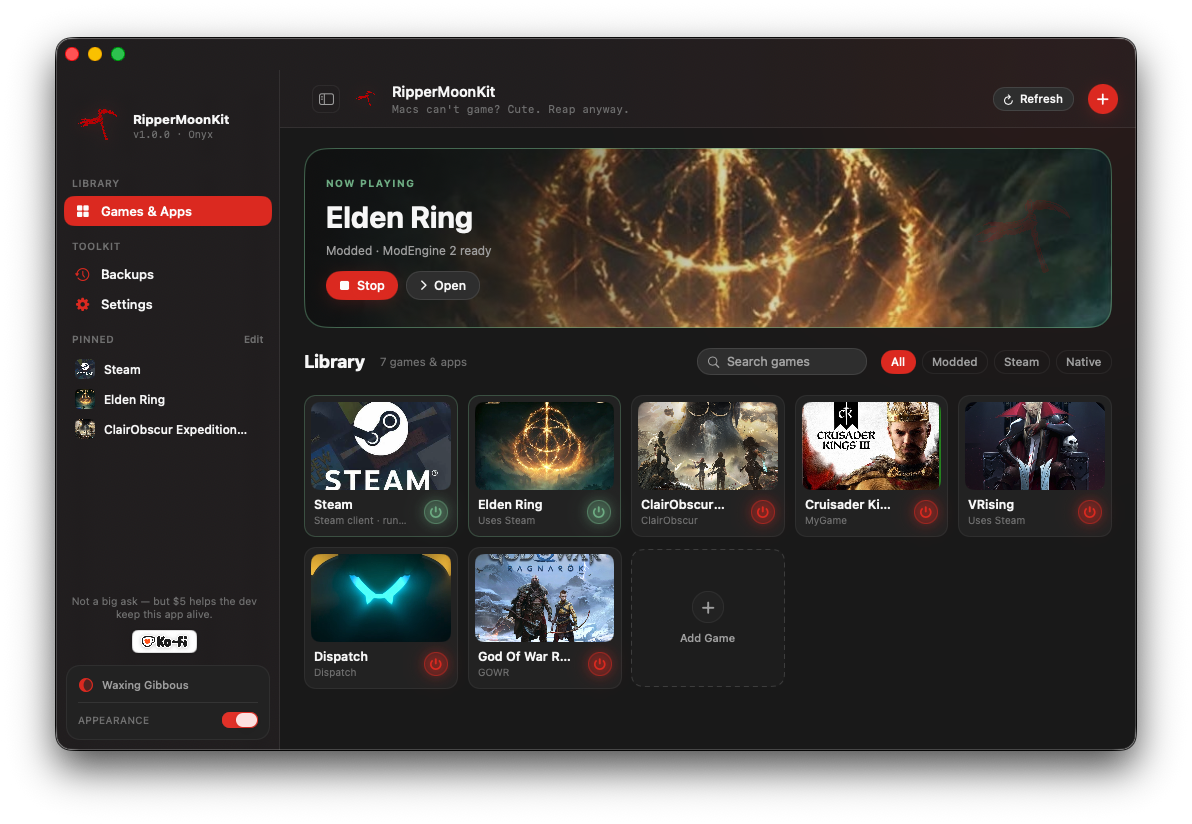
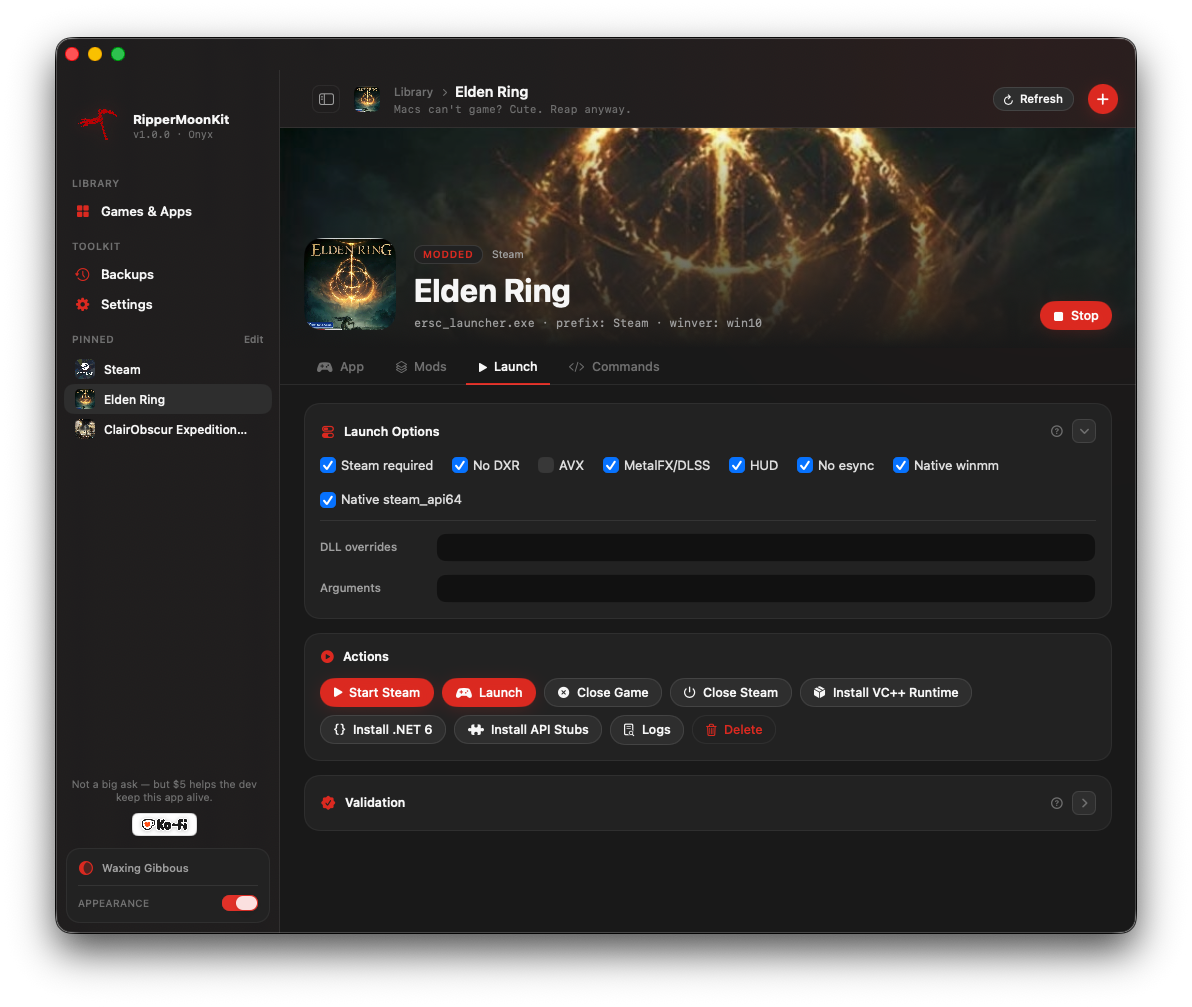
Library
The sidebar opens a library view with a grid of games and apps. Steam appears as its own app tile, and it can still be started automatically by profiles that depend on Steam. Profile pages now collapse large advanced sections so new users can stay focused while technical users can still inspect exact commands.
First-Run Setup
The first-run setup keeps required GPTK work separate from optional Steam waiting time. It prepares the bundled toolkit source, installs helper scripts, pauses for Apple GPTK 3.0 when needed, verifies the local GPTK runner/runtime, then starts Windows Steam installation in the background.
The app can move to You're all set while Steam continues installing. That finished screen tells users they can sign into Steam later from the Steam profile, set paths, add copied already-installed Windows game folders, and add a TheGamesDB API key for cover art.
While Steam is still installing, the app shows that state instead of claiming Steam is ready. The background log is written under $GPTK_HOME/logs/steam-install-background-YYYYmmdd-HHMMSS.log.
Profiles
Use Add Game to create a profile. Set the display name, icon, prefix, game folder, executable, and any game-specific runner. The square icon in the page header belongs to the selected game.
Actions
- Start Steam starts Steam when the profile needs it.
- Install Spacewar appears on the Steam profile and launches AppID 480 once so Steam can install Spacewar for co-op Steamworks test paths.
- Launch starts the selected game.
- Close Game closes the game process without closing Steam.
- Install VC++ Runtime installs Microsoft Visual C++ runtime files into that profile's prefix.
Paths And Drives
Settings lets users update the main paths and drive mappings without editing the hidden environment file by hand. Drive letters are flexible except for C:, which belongs to the Wine prefix.
Updates
Check for Updates checks the latest public GitHub release. When a newer version is available, the sidebar shows an update notice that sends users to Settings > Maintenance.
Update From GitHub fetches the latest repository changes, installs the helper scripts, rebuilds the local app, then closes and reopens the packaged app. Update backups are created before toolkit files are replaced.
Tester Reports
Report Test Result in the sidebar copies a structured game test report and opens a prefilled GitHub issue. GitHub may still require sign-in before submitting; the copied report can also be pasted into Reddit, Discord, email, or another feedback form.
Elden Ring Mod Manager
The Randomizer writes files that are mounted by ModEngine at launch time. If the same game folder is launched without ModEngine, randomization disappears. That is expected and keeps the randomized profile separate from the normal game path.
Backup Mod State captures the active ModEngine, Seamless Co-op, and helper executable footprint before risky changes. Import From Friend accepts an exported co-op/randomizer friend kit, stages the bundled ZIPs, copies the shared .randomizeopt, and applies the shared Seamless password without printing it.
The installer removes macOS archive sidecars such as ._Something.xml, .DS_Store, and __MACOSX after extracting ZIPs. Those files are binary metadata, not Randomizer definitions, and can otherwise cause XML encoding errors.
Tool Credits
The Elden Ring Mod Manager coordinates user-downloaded community tools; it does not redistribute their files.
- ModEngine 2 supplies the mod loader used by Launch Modded.
- Elden Ring Seamless Co-op / ERSC supplies the co-op DLL and launcher used by the ERSC profile.
- elden-randomizer-coop is the setup reference used to mirror the Windows workflow in native macOS scripts.